macOS · For Final Cut Pro & Premiere editors
ReelPull user guide
Everything you need to go from a video link to a clip sitting on your timeline — and to get the most out of Pro. If you’re brand new, start at the top; otherwise jump to a section.
01Install & first launch
ReelPull is a native macOS app for Apple Silicon. Get the free build from reelpull.app/download, open the .dmg, and drag ReelPull into your Applications folder. It’s signed and notarised by Apple, so it opens without any “unidentified developer” warning.
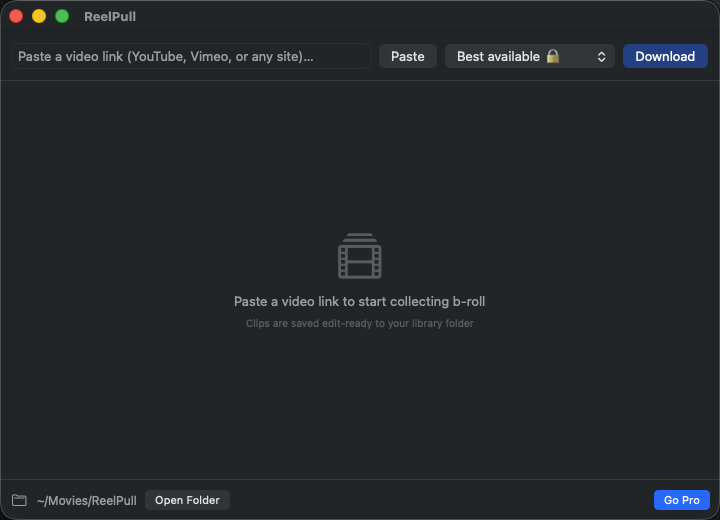
On first launch you’ll see a single window: a bar to paste links, a quality menu, and an empty download list. Clips are saved to a library folder (your Movies folder by default) — you can change it in Preferences.
02Your first download
- Copy a video link (a YouTube watch URL, or a link from any of the 1,700+ sites the engine supports).
- Paste it into the bar at the top of the window.
- Pick a quality from the menu (more on these below).
- Press Download — or just hit Return.
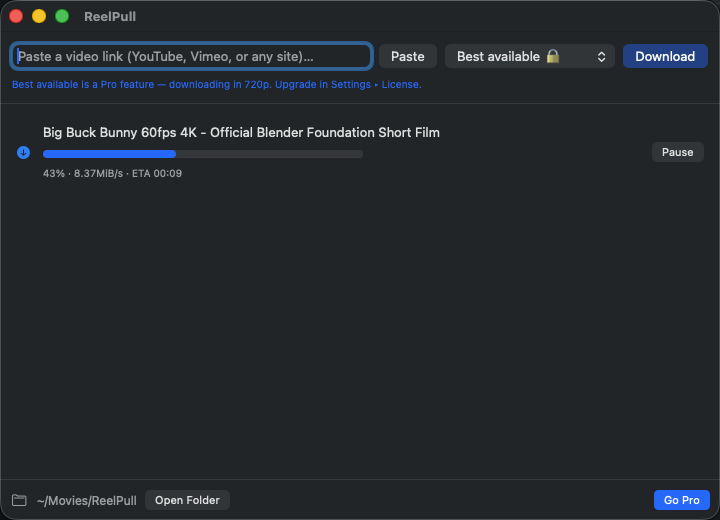
The clip appears in the list with a live progress bar. When it finishes it’s in your library folder, remuxed into an MP4 and ready to drop straight onto a Final Cut or Premiere timeline. Click a finished item to reveal it in Finder.
03Quality presets explained
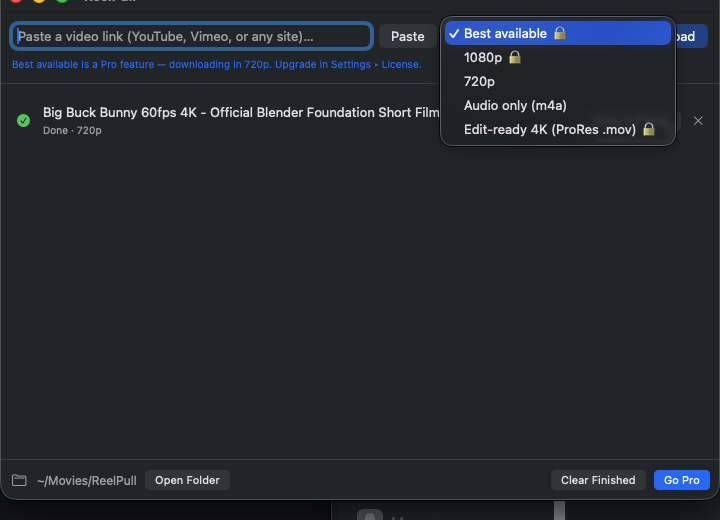
720p & 1080p
Prefer H.264/AAC and remux it losslessly into an MP4 — the format Final Cut and Premiere ingest natively. This is the everyday choice: fast, small, edit-ready. Free tier: up to 720p.
Best
Pulls the highest resolution available. Above 1080p, YouTube only serves VP9 or AV1 — ReelPull still remuxes into MP4 without re-encoding, but that swaps the wrapper, not the codec, so a 4K file may need a conversion pass before Final Cut will take it. For a guaranteed edit-ready 4K, use the ProRes preset below.
Audio only
Extracts the audio as an .m4a. If the source audio isn’t already AAC (YouTube uses Opus), it’s re-encoded to AAC.
Edit-ready 4K → ProRes (Pro)
Transcodes a 4K VP9/AV1 source to visually-lossless Apple ProRes 422 HQ in a .mov— the codec editors actually want on a timeline (all-intra, 10-bit, instant scrubbing). This is the way to make 4K genuinely edit-ready. One honest trade-off: ProRes files are large, roughly 7 GB per minute at 4K.
04Pause, resume & app restarts
Downloads are resumable. If one is interrupted — you quit the app, close the lid, lose Wi-Fi — the partial file is kept, not thrown away. Reopen ReelPull and the item is still there, marked resumable with its saved progress. Press Resume and it continues from the exact byte it stopped at, never from zero.
05Batch downloads (Pro)
Paste several links at once — one per line — and ReelPull queues them all, downloading up to three at a time. Ideal for pulling a batch of reference clips at the start of an edit.
06Preferences
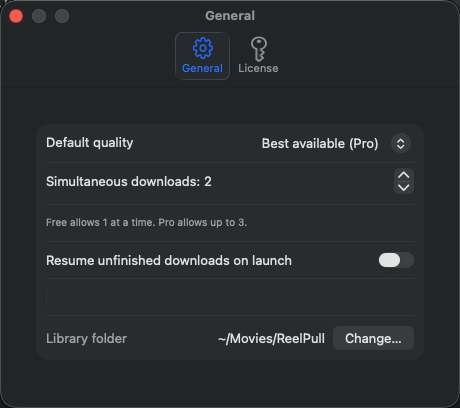
Open Preferences with ⌘ ,. You can set:
- Default quality — so you never have to pick it.
- Concurrent downloads — how many run at once (Pro).
- Auto-resume on launch — pick up interrupted downloads automatically.
- Library folder — where clips are saved.
07Going Pro
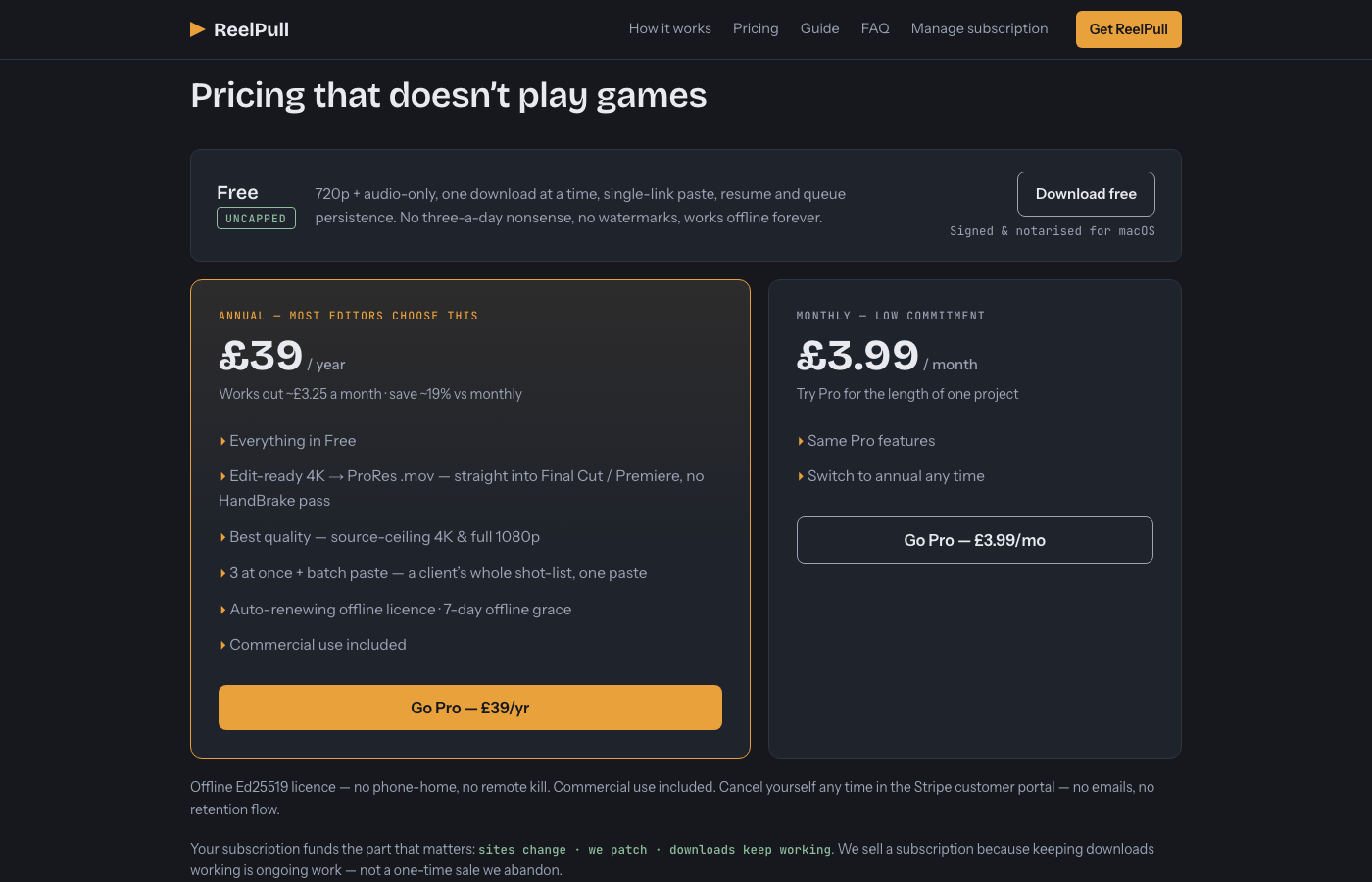
Pro unlocks Best/1080p/4K quality, the ProRes preset, three concurrent downloads, and batch paste — for £3.99/month or £39/year. Subscribe from the pricing section on the website:
Checkout is handled by Stripe — your card details never touch ReelPull. The moment you pay, your licence key appears on the confirmation page and is emailed to you.
Redeeming your key
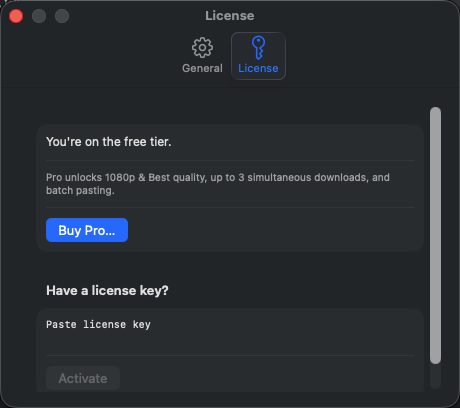
In ReelPull, open Settings ▸ License, paste your key, and click Activate. Pro unlocks immediately. The key verifies entirely on your Mac — no account, no login — and quietly renews itself in the background while your subscription is active, with a 7-day grace window so a week off the grid changes nothing.
08Managing your subscription
Everything to do with billing is self-serve. Use Manage subscription on the website to open Stripe’s customer portal — update your card, switch between monthly and annual, see invoices, or cancel, all yourself with no emails or retention hoops. If you cancel, Pro runs to the end of the period you’ve paid for, then the app quietly returns to the free tier.
Lost your key?
Enter your purchase email in the “Lost your key?” box on the website and we’ll re-send the key — only ever to the address on file.
09Rights & DRM
ReelPull is built for footage you’re allowed to use — your own uploads, Creative Commons material, and licensed content. DRM-protected streaming services (Netflix, Disney+, Prime and friends) are refused up front: their video is copy-protected and downloading it would circumvent that protection, which is out of scope for a rights-respecting tool. If you paste a mix of links, the legitimate ones still queue and the DRM ones are skipped with a clear note.
10Troubleshooting
A download failed
Sites change their formats often — when they do, downloads can break until the engine catches up. ReelPull bundles its engine and ships updates fast; retry the download, and if it keeps failing, check back shortly.
“Why is my 4K file VP9 / won’t import into Final Cut?”
Above 1080p, YouTube only offers VP9 or AV1, which Final Cut doesn’t import natively — there’s a fuller explanation of the codec wall here. Use the Edit-ready 4K → ProRes preset (Pro) to get a timeline-native file, or download at 1080p where H.264 is available.
The app says the engine isn’t installed
ReelPull bundles everything it needs — no Homebrew, no terminal. If you see this, reinstall from the latest build. (Running yt-dlp yourself and hitting errors is a separate problem with three usual causes.)